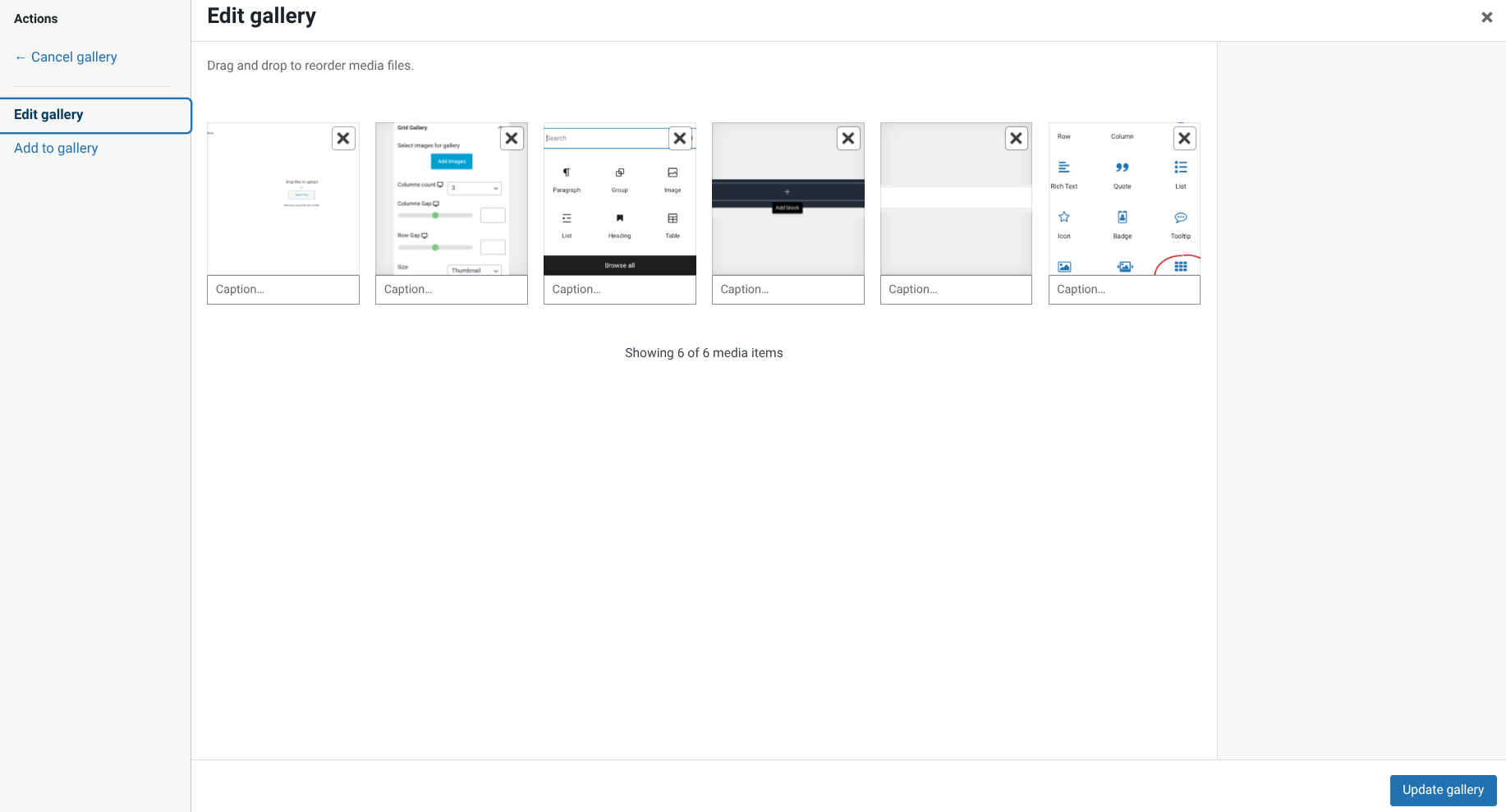
Earlier, when finishing up Assignment 1, I used a helpful widget to compile all my paletton screenshots called the Grid Gallery. This widget allowed me to compile 12 images into a single gallery, with just a few clicks and some drag-and-drop. All images it displays are full resolution and zoom in when clicked. Here's how to try it yourself.
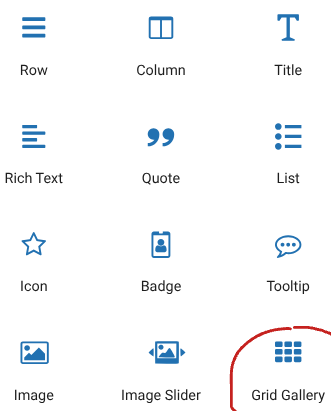
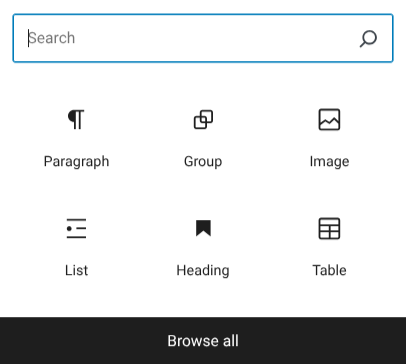
Navigate to Widgets on the WordPress Dashboard, and scroll down to inactive. Open it up, click the "+", which should say "Add block" when hovered over. Hit "Browse all," and scroll down to... you guessed it, Grid Gallery. Select it, and save your changes. If it says "Please Select Images!", then ignore it. It's just displaying the default text that it'll show wherever you place it. You're fine to leave the page.
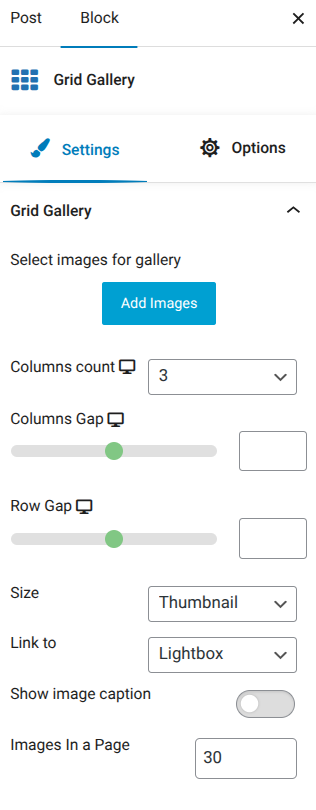
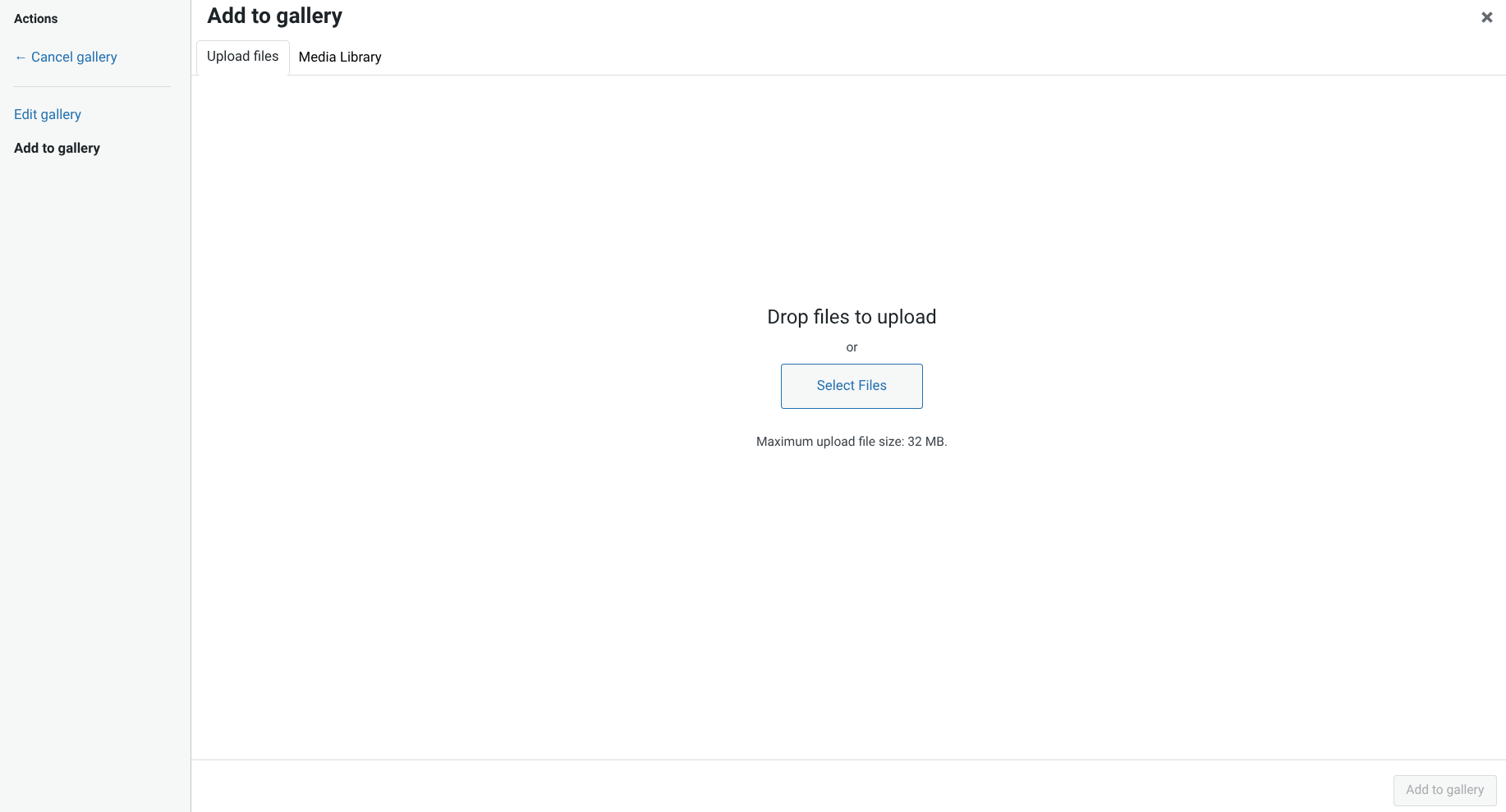
After this, you can use it in any page you want. Insert it from the block menu, and look at the sidebar. Click "Add images," and drag as many pictures as you want into the "Upload files" segment of the huge drop box that'll show up. You can easily reorder your images by navigating to "Edit gallery". You can edit the other various settings in the sidebar.
Below are some visual aids, in Grid Gallery format. Thanks for your time; use this feature wisely.